


Setting up Custom Domain for your Website: For GoDaddy

Before setting up redirection on your Name Server, make sure you have done the following on the CMS:
- Visit our CMS platform at https://cms.oneaccord.cc.
- Log in using your credentials.
- Navigate to the "Configuration" section from the sidebar menu.
- Click on the "Domain Setup" tab.
- Enter your preferred domain name.
- Click on "Check Availability" to confirm if your domain is available within our system.
- Once confirmed, click on "Save" to proceed.
- Look out for the success message indicating that your website has been updated.
Step 1: Login to Your Domain Provider’s Site: https://sso.godaddy.com/
You will be redirected to your domain provider’s dashboard upon successful login.
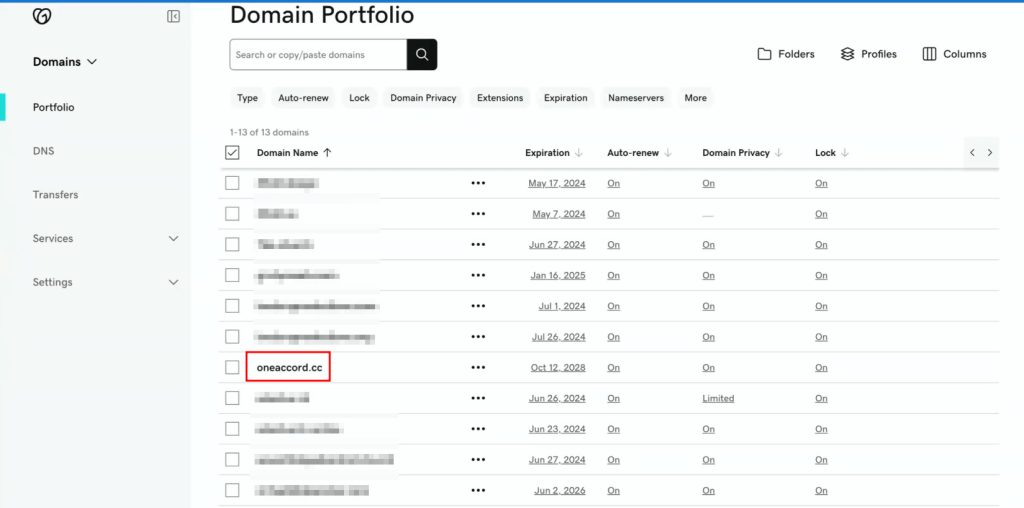
Step 2: Select Your Domain
Locate and select the domain you wish to set up for redirection and click on the domain name to access its management page.
Step 3: Access DNS Settings
Go to portfolio and click on the “DNS” option. This may be found in a menu or navigation bar, as shown in the Screenshot.
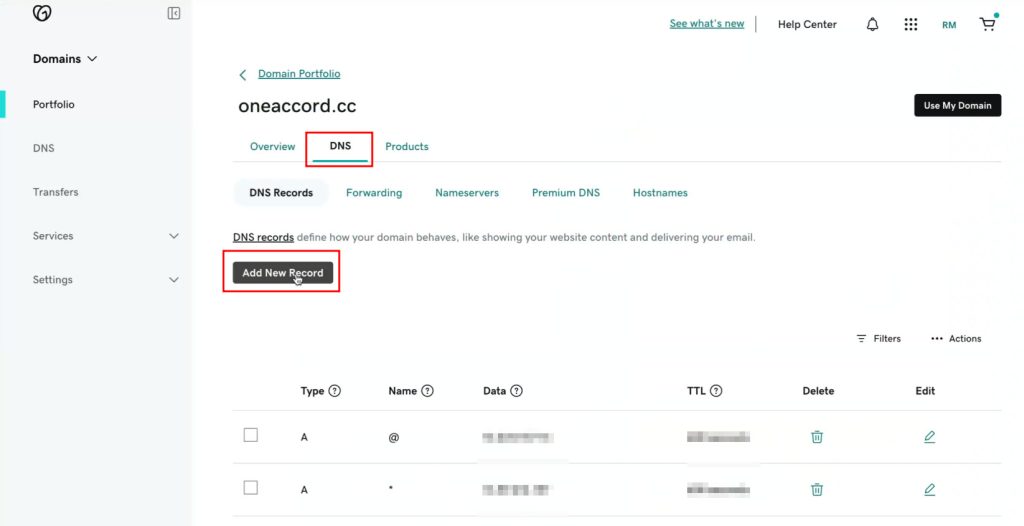
Step 4: Click on Add Record
Select "A" as the type. On the Name field, you can type @ and paste this IP Address as the Value: 13.59.212.157.
Set the TTL(Time To Live) to “Auto” or leave it as default.
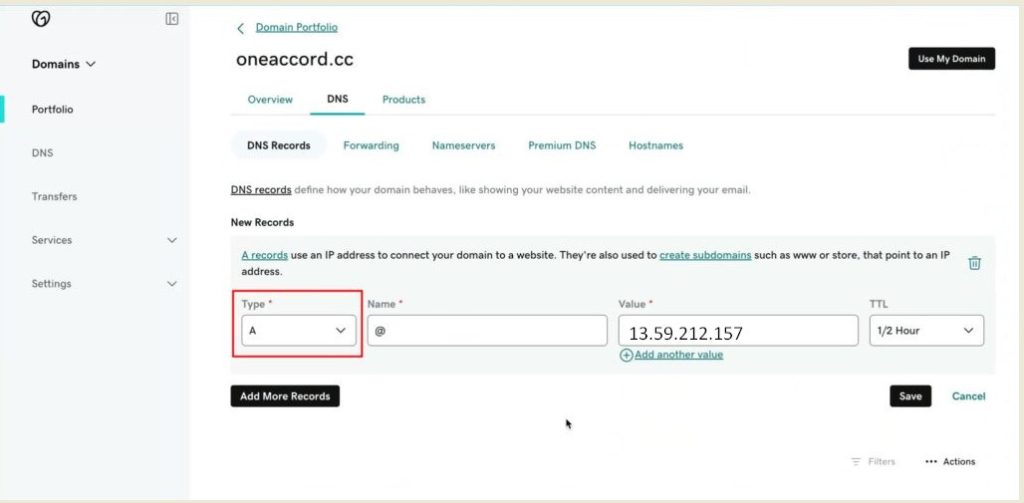
Important Note: Ensure you don’t have old A records pointing to another IP address on the same domain name. If you do, please delete that old A record.
Step 5: Create another Record
On Type choose CNAME
ON Name put www
On value put your root domain name for example if your domain name is "domain.xyz" put that there
Once this is done, give it some time, and the Domain will be transferred to your custom domain.