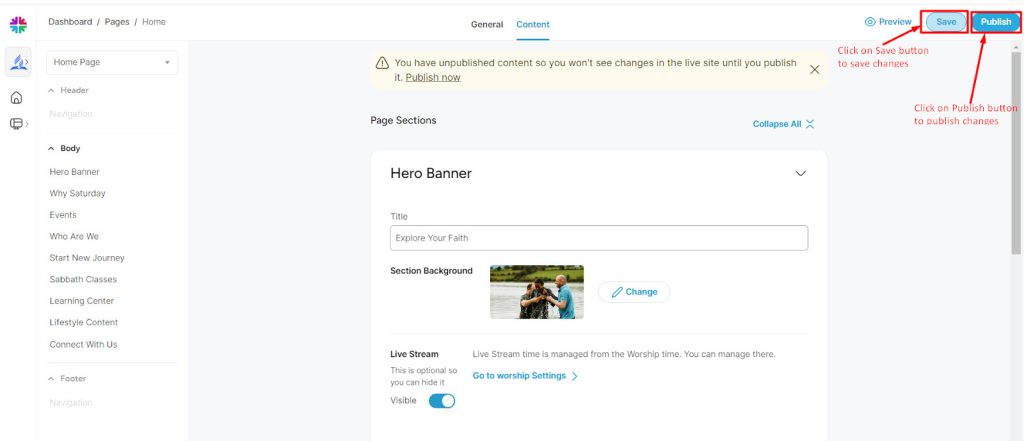
Edit Hero Banner Section's Content on the Home Page

Step 1: Log in as a church admin using valid credentials. ( If you are not aware of how to do it follow "Login As Church Admin" user manual)
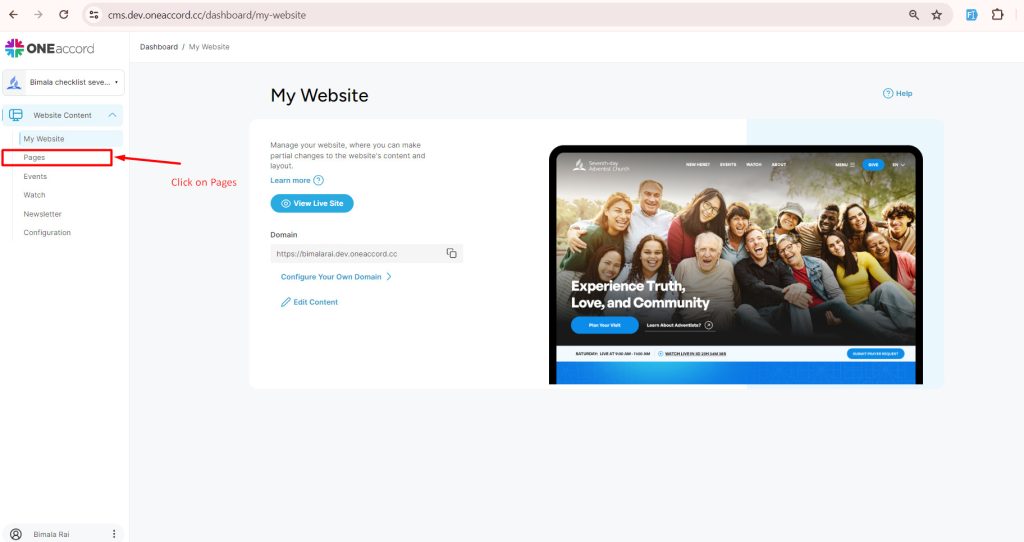
Step 2: Select "Pages" from the options available.
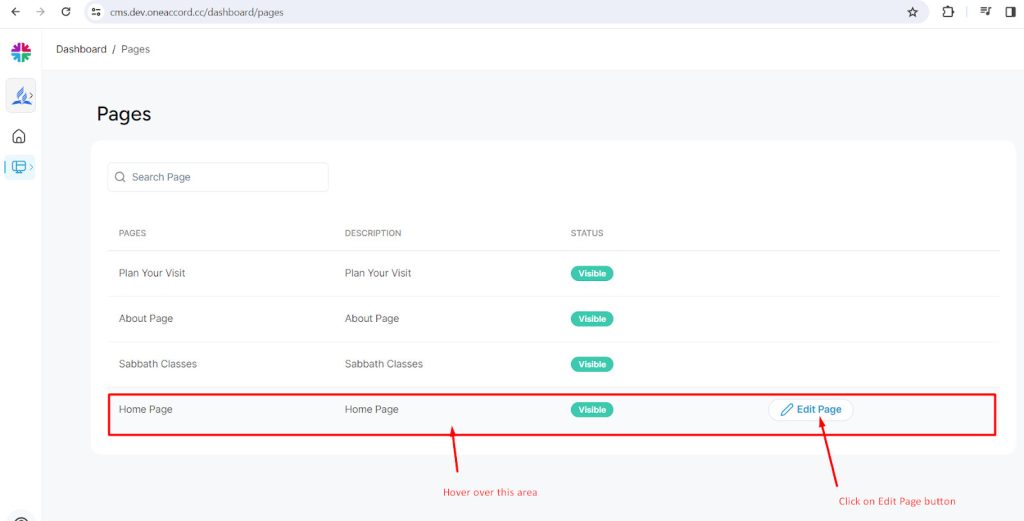
Step 3: Hover over the "Home Page" section; the "Edit Page" button will appear. Click on it to proceed.
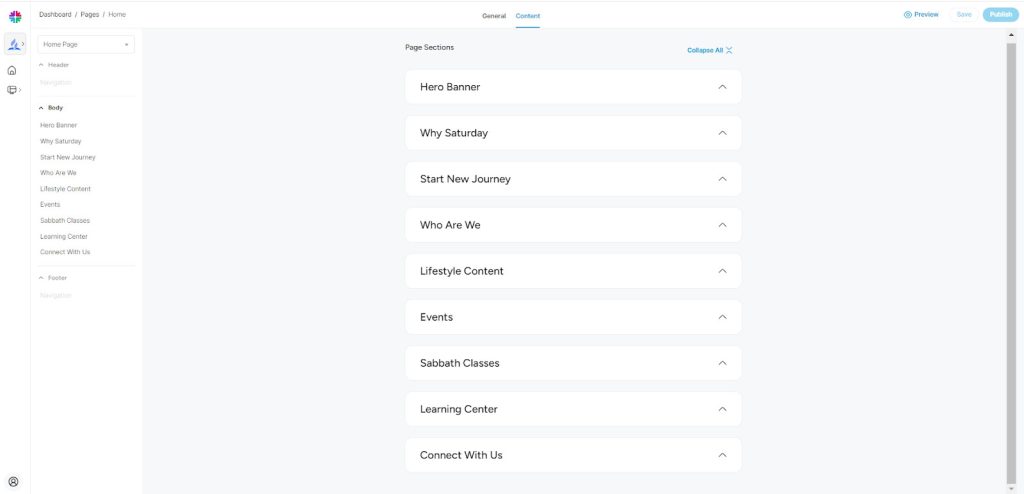
You'll be redirected to a section where you can edit various local content visible on the Home Page of the church’s website. Follow the manual for detailed instructions on editing specific contents of the Home Page.
Step 4: Click on "Hero Banner". A dropdown menu will appear, presenting options to change the Title, Section Background, and Live Stream's visibility.
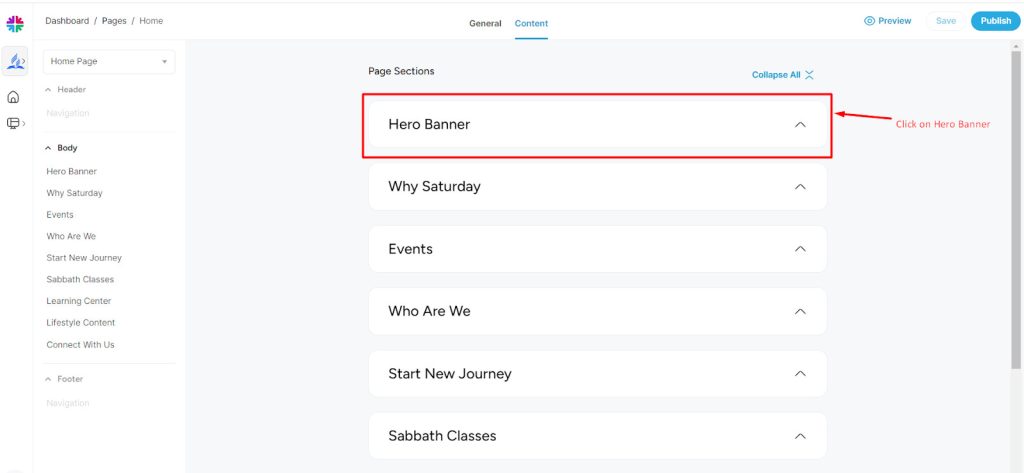
Step 5: Customize the content as desired:
- To edit the title, provide a new title in the Title section.

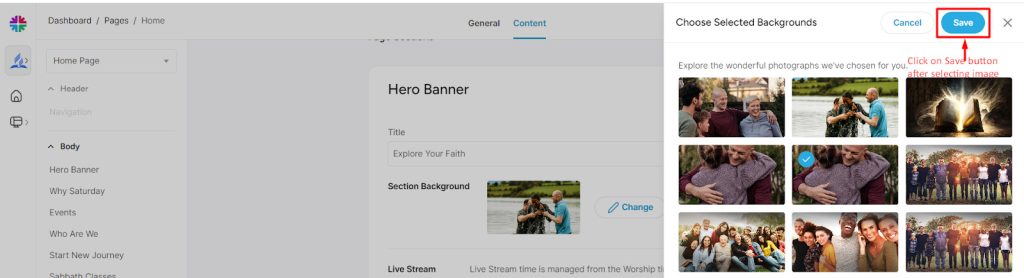
- To change the background image, click on the “Change” button beside the current background image. Select any image from the available options and click "Save".
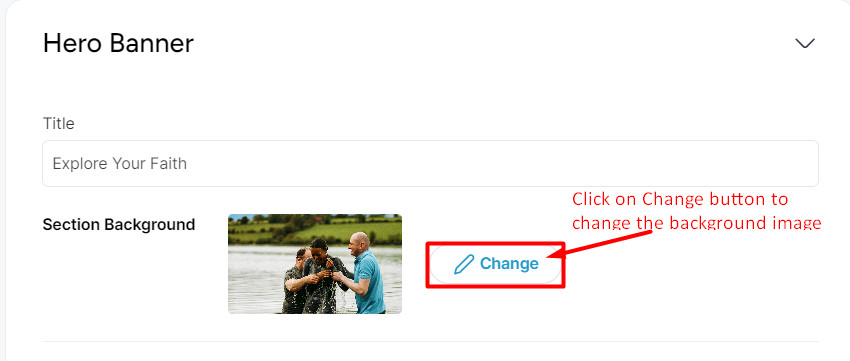
Select any image from the available images to change the background to
Click on the “Save” button on the top right corner after selecting the background image.
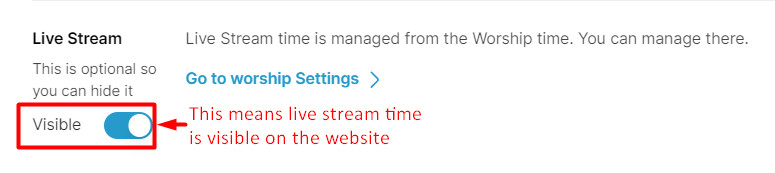
- Adjust the visibility of the live stream time with the toggle button under the Hero Banner section:
Hide Live Stream time on website

Unhide Live Stream time on website
Step 6: Click on the “Preview” button at the top right corner to review changes before publishing.
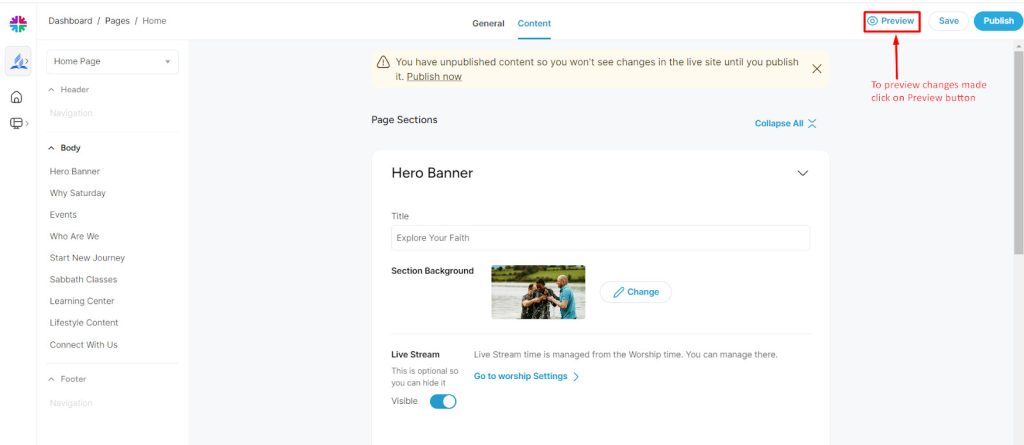
Step 7: Click on the “Save” button to save the changes, then click on “Publish” to apply them.