Setting Up a Custom Domain for Your Website

The custom domain setup for your domain requires configuring DNS records to point to One Accord's infrastructure.
Domain Configuration Requirements
Before starting, ensure you have:
- Domain management access credentials
- Ability to modify DNS records
- Access to your Domain Name
General Configuration Steps
- DNS Record Cleanup
- Remove all existing A records
- Delete any conflicting CNAME records
- Required CNAME Records
- Root Domain Record:
- Type: A
- Name: @
- Value: 13.59.212.157
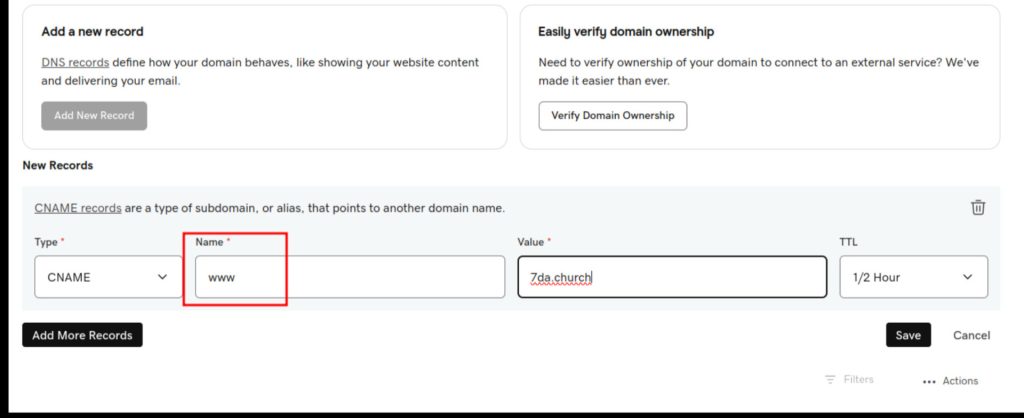
- WWW Subdomain Record:
- Type: CNAME
- Name: www
- Value: domain name (say, keystorevelation.com)
- Root Domain Record:
The fundamental DNS configuration principles remain consistent across different providers, though the exact interface and navigation paths may vary.
Steps for Setting up Custom Domain
Step 1: Login to Your Domain Provider’s Site
You will be redirected to your domain provider’s dashboard upon successful login.
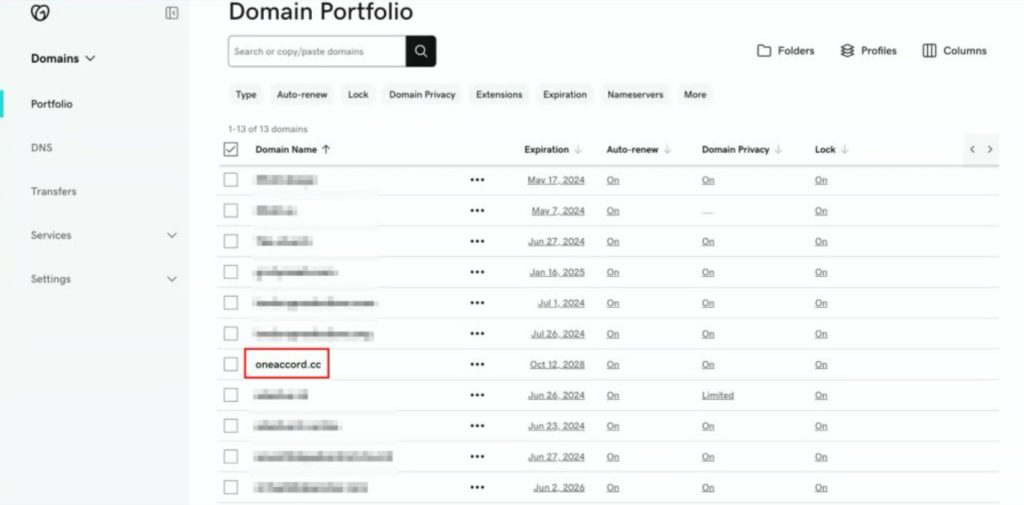
Step 2: Select Your Domain
Locate and select the domain you wish to set up for redirection and click on the domain name to access its management page.
Step 3: Access DNS Settings
Go to the portfolio and click on the “DNS” option. This may be found in a menu or navigation bar, as shown in the Screenshot.
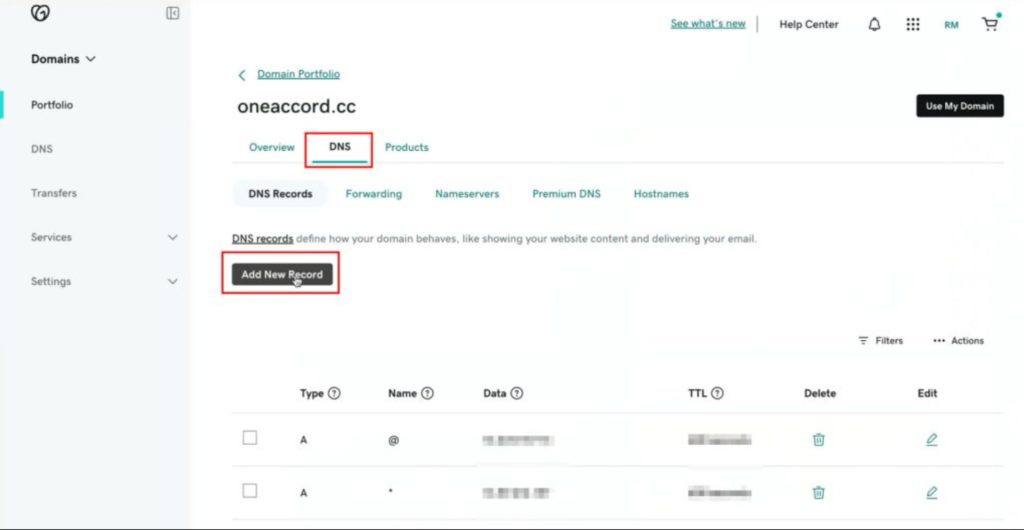
Step 4: Click on Add Record
Select “A” as the type. On the Name field, you can type @ and paste this IP Address as the Value: 13.59.212.157.
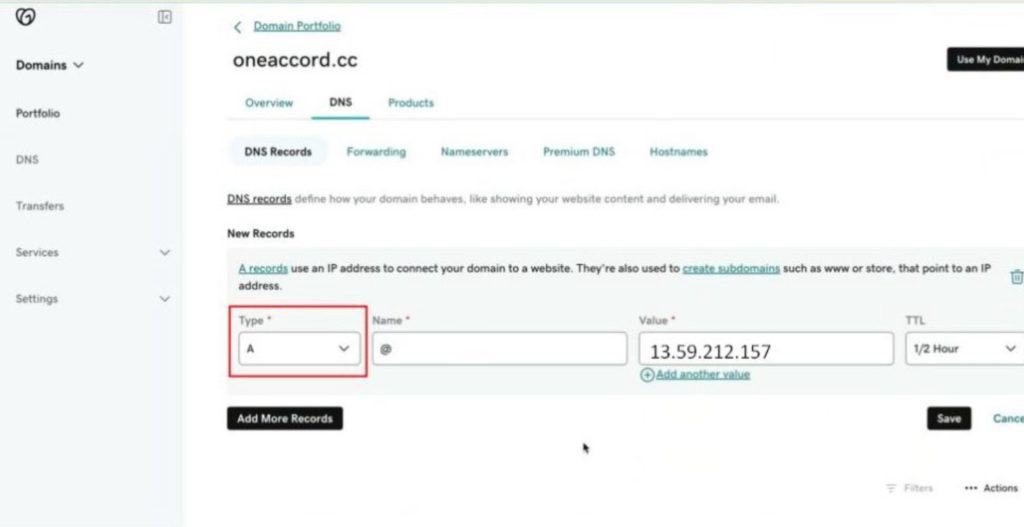
Set the TTL(Time To Live) to “Auto” or leave it as default.
Important Note: Ensure you don’t have old A records pointing to another IP address on the same domain name. If you do, please delete that old A record.
Step 5 : Create CNAME Record
- Click on Add Record
- On Type choose CNAME
- On Name put www
- On value put your root domain name for example keystorevelation.com