


How To Add A User

Step 1: Open Users List
- Sign into your One Accord account. For instruction on how to sign in, please reference the article on “How to Sign In” [insert link to article]
- Go to your Dashboard
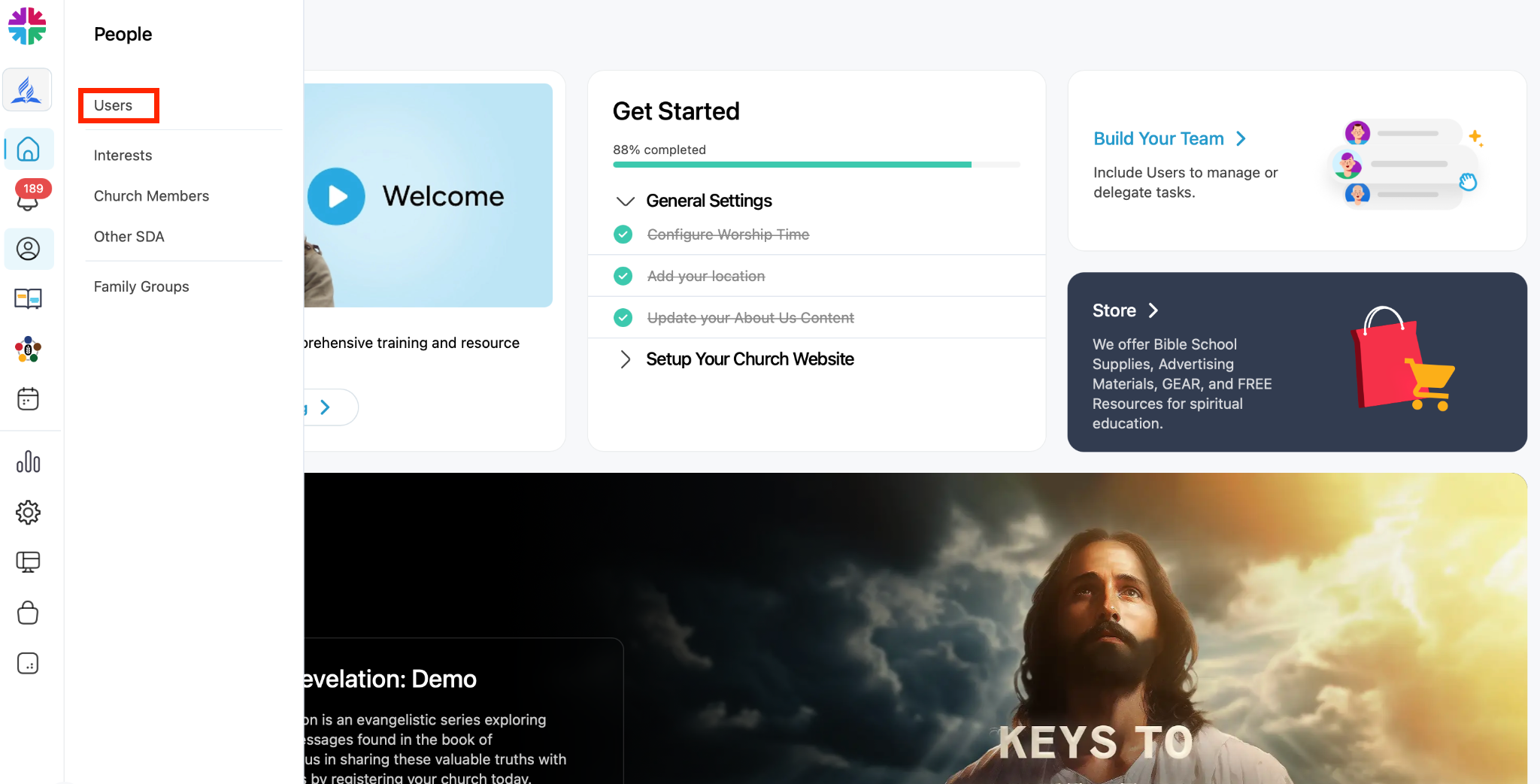
- Click the People icon on the left-hand menu
- Select “Users”
Step 2: Add a New User
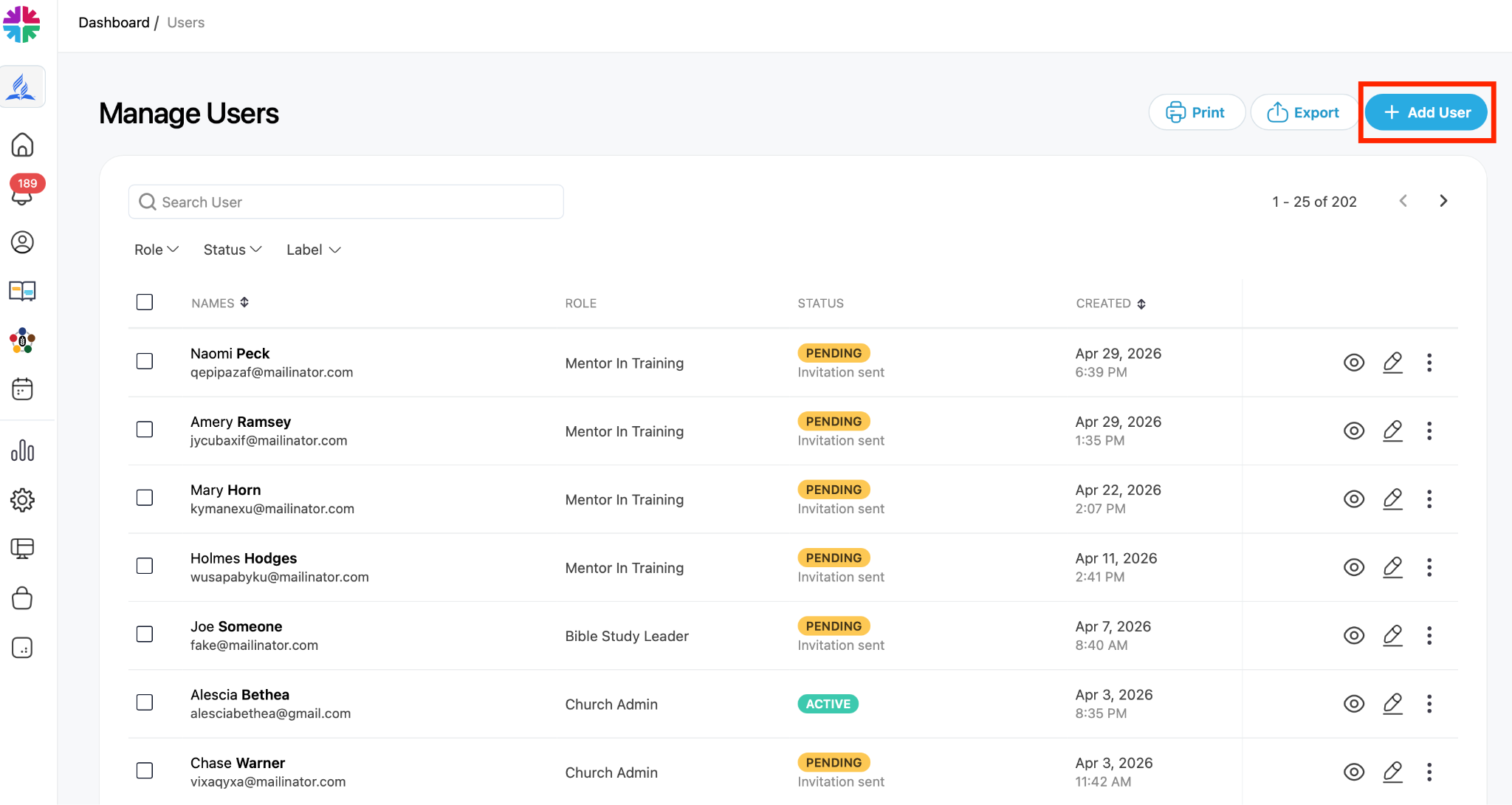
- Click the blue “Add User” button (top right)
Step 3: Enter User Information
Fill in the required details:
- Name
- Email address
- User Role
Optional fields (recommended if available):
- Phone number
- Date of birth
- Gender
- Profile image
- Address
- Ministry label (e.g., Men’s Ministry, Health Ministry)
- Notes
Step 4: Save the User
- Click “Save” to save the user’s profile
Step 5: User Receives Invitation
- The new user will receive an email invitation with instructions for accessing the system
- They must set up a password to activate their account
- Once they have set up their password, they will be able to access the system at https://admin.oneaccord.cc/login using their email address and password. For more information on getting signed in, please reference the article on “How to Sign In” [insert link to article].
Step 6: Check User Status
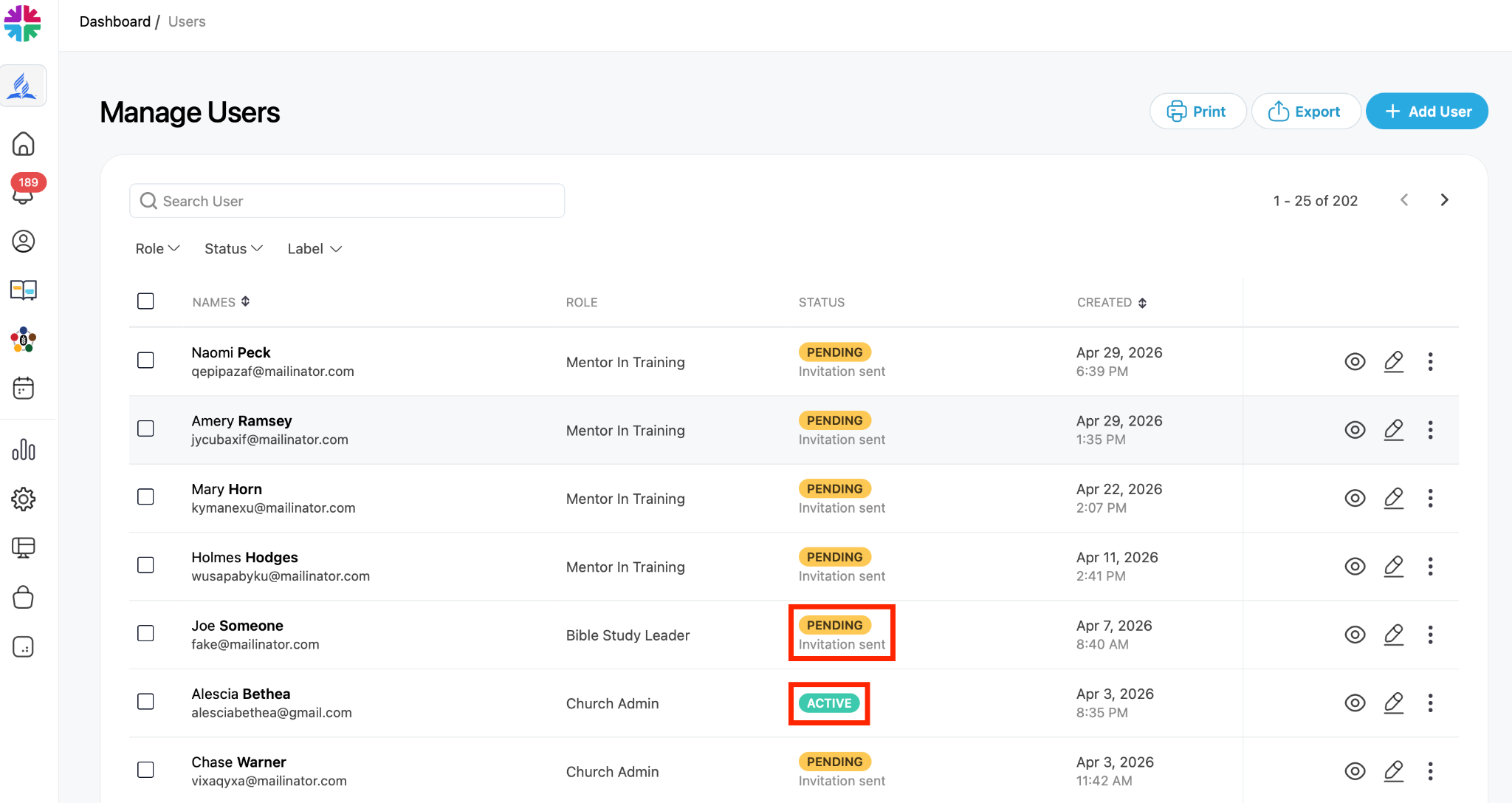
- After saving, the user will appear in the Users list as “Pending”
- Once they accept the invitation and set a password, their status will change to “Active”
Step 7: Resend Invitation (If Needed)
- If the user lost or did not receive the invitation email:
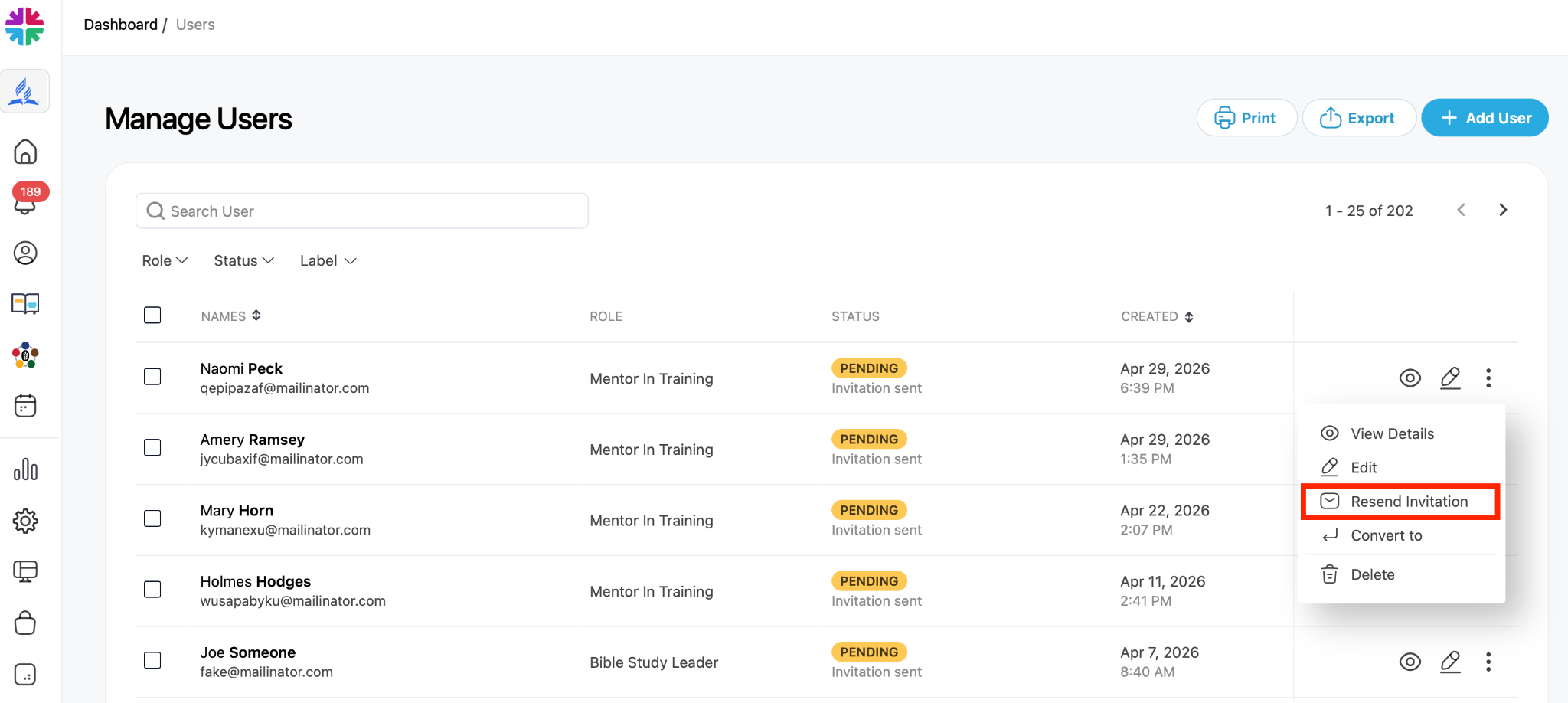
- Click the three dots next to their name
- Select “Resend Invitation”
The user is now added to your One Accord team and can access the system once they activate their account.